EN | JP

EN | JP
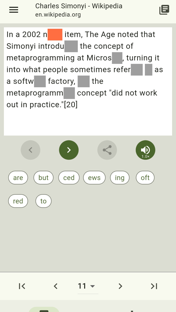
This is an app for reading foreign-language content while training the ability to predict words from context.

API 26 (Android 8.0) or later
This software is released under the MIT License. [http://opensource.org/licenses/mit-license.php]
Open the page you want to read in a web browser or another app and copy the link from the location bar. Then open ReadBlank and click either the Library button or the hamburger menu button to open the content list or settings. Click the “Add Link” button to add the copied link.
Click the Library button to open the content list and select the content you want to read. You can filter the list by language using the dropdown menu. You can also mark content as a favorite by clicking the Favorite button and filter the list to show only your favorites.
Click a word from the word list in the lower half of the screen to fill in the orange-highlighted blank in the text field in the upper half of the screen. If your answer is correct, the word is entered in the blank and read aloud. The highlight then moves to the next blank. You can also move the highlight by clicking a blank in the text field or by clicking the left and right buttons below it. Once a blank has been filled, the word cannot be changed.
When the highlighted blank has already been filled, the Share feature becomes available. You can use it when you want to look up the meaning of the word, for example. Click the Share button next to the left and right buttons to select an app to share the word with.
Click the Speaker button next to the Share button to start reading the entire text aloud. You can adjust the reading speed and volume by clicking the hamburger menu button to open Settings. Muting also disables the reading aloud of words after correct answers.
A paragraph is defined as a single paragraph identified as such in the original web content. You can select a paragraph using the buttons or dropdown menu below the word list.
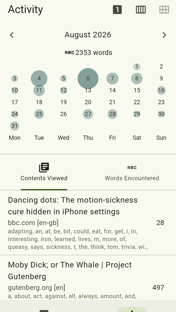
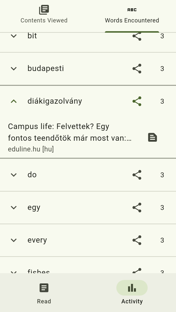
Click the Activity button at the bottom of the screen to view your activity. Use the buttons at the top to select the period you want to view: month, week, or day. Scroll down to see the content you viewed and the words you filled in during the selected period.
22 Oct 2026 15:47 (CET)
Updated libraries and dependencies.
15 Sep 2026 14:23 (CET)
This is the first release.
Last update on 14 Sep 2026
This Privacy Policy explains how ReadBlank handles user information.
ReadBlank does not collect personal information such as names, phone numbers, email addresses, or passwords. The application does not require an account or registration. Content, activity history, and other data created or used by the application are stored locally on the user's device.
ReadBlank retrieves web pages from URLs provided by the user. These requests are sent directly to the servers hosting the requested web pages. ReadBlank does not send this content or the user's activity history to the developer.
ReadBlank does not share user data with third parties. When you use the Share feature, the data you choose to share is sent to the application you select. This action is initiated by the user.
Google Play may provide the developer with crash and diagnostic information through Google Play Console when users have enabled the relevant Android usage and diagnostics reporting. ReadBlank does not include a separate crash reporting or analytics service.
This Privacy Policy may be updated from time to time.
If you have any questions regarding this Privacy Policy, please contact: withlet11@gmail.com